
Let us learn how to download e-Aadhaar and DigiLocker documents. Nowadays, many important documents can be downloaded online without visiting a
government oƯice. In India, people can use e-Aadhaar and DigiLocker to access their
documents easily. These services save time and make it simple to keep important
documents on a mobile phone or computer.
Whether you need your Aadhaar card for identity proof or your marksheet for a job
application, these digital services can be very helpful. In this article, we will explain how
to download e-Aadhaar and DigiLocker documents in simple language.
What Is e-Aadhaar?
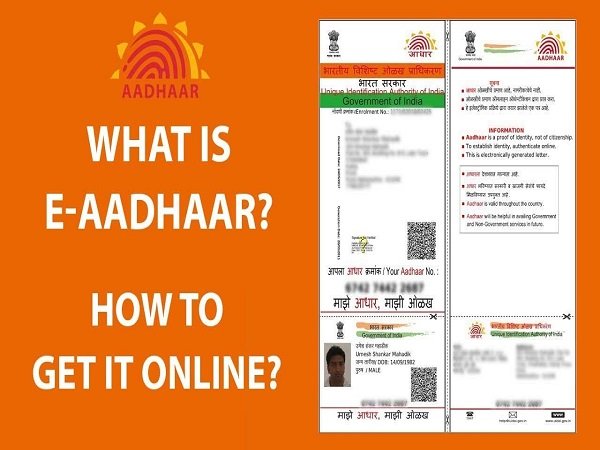
e-Aadhaar is the electronic copy of your Aadhaar card. The Unique Identification
Authority of India (UIDAI) issues it. You can download it from the oƯicial website and
save it on your phone or computer for whenever you need to show your identity.
Whenever you need to show your identity.
Steps to Download e-Aadhaar
Follow these simple steps to download your e-Aadhaar online.
Step 1: Visit the OƯicial Website
Open a web browser on your mobile phone or computer. Visit the oƯicial UIDAI website
at https://uidai.gov.in.
Step 2: Select the Download Aadhaar Option
Look for the Aadhaar services section and select the option to download Aadhaar. You
will be directed to the relevant page.
Step 3: Enter Your Details
Enter your Aadhaar number, Enrolment ID, or Virtual ID, depending on the options
available. Check your details carefully before continuing.
Step 4: Verify Your Identity
Request a One-Time Password (OTP). You will receive it on your registered mobile
number. Enter the OTP to complete the verification process.
Step 5: Download Your Aadhaar
After successful verification, click on the download option. Your e-Aadhaar will be
saved as a PDF file on your device.
Step 6: Open the PDF File
The downloaded file is password-protected. The password usually contains the first four
letters of your name in capital letters, followed by your birth year in YYYY format.
For example, if your name is RAHUL and your birth year is 1998, the password will be
RAHU1998.
What Is DigiLocker?
DigiLocker is an online service provided by the Government of India under the Digital
India initiative. It allows people to access and store their important documents digitally.
You can use DigiLocker to get documents such as driving licences, educational
marksheets, certificates, and vehicle registration documents. It reduces the need to
carry physical copies everywhere.
Documents issued by authorised organisations through DigiLocker can be used for
oƯicial purposes, subject to the relevant rules and requirements.
Steps to Download DigiLocker Documents
Follow these steps to access your documents through DigiLocker.
Step 1: Visit the DigiLocker Website
Open your browser and visit the oƯicial website at https://www.digilocker.gov.in. You
can also install the oƯicial DigiLocker app from your phone’s app store.
Step 2: Sign In or Create an Account
If you already have an account, enter your login details. If you are a new user, select the
sign-up option and follow the instructions to create an account.
Step 3: Complete the Verification Process
Enter the required information and verify your account. Depending on the service, you
may need to provide additional details or link your Aadhaar.
Step 4: Search for Your Document
After logging in, look for the option to search for or fetch documents. Select the
organisation that issued your document. For example, you can search for your
education board if you need a marksheet.
Step 5: Enter the Required Details
Enter the information requested by the system, such as your roll number, registration
number, or passing year. Make sure all the details are correct.
Step 6: Fetch Your Document
If the issuing organisation supports DigiLocker, your document may be retrieved and
added to the issued documents section of your account.
Step 7: Download and Save the Document
Open your document and select the download option if available. Save it on your phone
or computer so you can access it whenever needed.
Important Safety Tips
While downloading documents online, always follow these safety tips:
- Use only the oƯicial UIDAI and DigiLocker websites or apps.
- Never share your OTP, password, or security PIN with anyone.
- Avoid clicking on suspicious links asking for your personal information.
- Save your documents in a secure folder on your device.
- Log out of your account when using a public or shared computer.
- Check that your downloaded document contains the correct information.
- Conclusion
Downloading e-Aadhaar and DigiLocker documents is a simple and useful process. eAadhaar helps you get a digital copy of your Aadhaar card, while DigiLocker allows you
to access documents issued by participating organisations. Both services make
document management easier and save time. By following the correct steps and using
oƯicial websites, you can download your important documents safely and access them
whenever required.