
Windows computers make our daily work easier, but sometimes they slow down, lose
internet connections, or display unexpected errors. The good news is that you can fix
many common Windows problems at home without visiting a repair shop. You need to
follow a few simple steps.
In this article, we will explore seven common Windows problems and learn how to solve
them easily.
- How to Fix Windows 11 Running Slow in 10 Minutes
A slow computer can be frustrating, especially when you have important work to finish.
common reason is that too many apps are running in the background.
Here is how to speed up your computer:
1.) Press Ctrl + Shift + Esc to open Task Manager.
2.) Check which apps are using too much memory or CPU.
3.) Close unnecessary apps that you are not using.
4.) Restart your computer to refresh the system.
5.) Open Settings, go to Windows Update, and install available updates.
You can also free up storage space by deleting temporary files. These simple steps may
improve your computer’s speed within ten minutes, depending on the cause. - How to Fix the “No Internet, Secured” Wi-Fi Error
Have you ever connected your laptop to Wi-Fi but still couldn’t open websites? The
message “No Internet, usually means your computer is connected to the Wi-Fi network
but cannot access the internet.
Try these easy solutions:
1). Restart your Wi-Fi router and wait a minute before reconnecting.
2.) Turn Wi-Fi oƯ and on again on your laptop. - Restart your computer.
- Open Settings, select Network & internet, and run the available network
troubleshooter. - If the problem continues, forget the Wi-Fi network and reconnect using the correct
password.
You can also check whether other devices can access the internet. If none of them
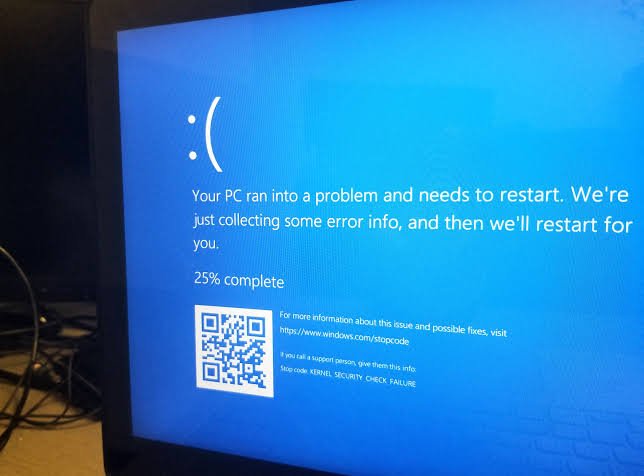
works, the problem may be with your router or internet service provider. - How to Fix the “Your PC Ran into a Problem” Blue Screen Error
A blue screen can appear suddenly when Windows encounters a serious system error.
Your computer may restart automatically, leaving you worried about your files.
This error can happen because of faulty drivers, hardware problems, corrupted system
files, or recent updates.
Follow these steps:
1.) Restart your computer and check whether the error appears again.
2.) Disconnect recently connected USB devices or other accessories.
3.) Install available Windows updates.
4.) Update drivers through Windows Update or the device manufacturer’s oƯicial
website.
5.) If Windows starts normally, open Command Prompt as an administrator and run .
If the blue screen keeps appearing, note the error code displayed on the screen. It can
help identify the cause. If Windows cannot start, use the Windows Recovery
Environment to access startup repair or other recovery options.
4.) How to Free Up C Drive Space Safely
When your C drive becomes full, your computer may slow down, updates may fail, and
apps may stop working properly.
The C drive usually contains Windows files and installed programs, so cleaning it
carefully is important.
Here is a safe way to free up space:
1.) Open Settings and select System, then Storage.
2.) Open Temporary files and review the available categories.
3.) Select files you no longer need and click Remove files.
4.) Empty the Recycle Bin if you are sure you do not need its contents.
5.) Uninstall unused applications through Settings under Apps.
You can also move personal photos, videos, and documents to another drive or trusted
cloud storage.
Important: Avoid manually deleting files from Windows or System folders. Also, check
the Downloads folder before removing anything because it may contain important
documents.
5.) How to Speed Up Startup and Disable Unnecessary Apps
Does your laptop take several minutes to become ready after switching it on? Some
applications automatically start with Windows and make the process slower.
The easiest solution is to disable unnecessary startup apps.
Follow these steps:
1.) Press Ctrl + Shift + Esc to open Task Manager.
2.) Select Startup apps.
3.) Review the applications listed there.
4.) Right-click an app you do not need at startup and select Disable.
5.) Restart your computer to check the diƯerence.
Do not disable security software or unfamiliar system-related applications without
understanding their purpose. Keep essential apps enabled to ensure your computer
works properly.
6.) How to Fix a Laptop That Won’t Charge
If your laptop says “Plugged in, not charging,” or the battery percentage does not
increase, the problem could be related to the charger, battery, charging port, or power
settings.
Try these basic checks:
1.) Check that the charger is properly connected to the laptop and power socket.
2.) Try another working socket.
3.) Inspect the charging cable and adapter for visible damage.
4.) Restart the laptop and check whether charging resumes.
5.) Check your laptop manufacturer’s battery and charging settings for any charging
limit.
If your laptop has a removable battery, follow the manufacturer’s instructions before
removing it. Never open a swollen battery or use a damaged charger. If the laptop
becomes unusually hot or the battery looks swollen, stop using it and seek professional
help.
If these steps do not work, the charger, battery, or charging port may need repair. - How to Reset a Forgotten Windows Password
Forgetting your Windows password can prevent you from accessing your computer, but
there are oƯicial recovery options.
The correct method depends on whether you use a Microsoft account or a local
account.
For a Microsoft account:
1.) On the sign-in screen, select the password reset option if available.
2.) Follow the instructions to verify your identity.
3.) Use Microsoft’s oƯicial password recovery page to reset your password if needed.
For a local account:
1.) Enter an incorrect password on the sign-in screen.
2.) If the option appears, select Reset password.
3.) Answer your previously configured security questions.
If these options are unavailable, use Microsoft’s oƯicial Windows recovery guidance.
Some recovery methods can remove files, so back up important data whenever
possible. Avoid unoƯicial password-reset tools that may put your files or privacy at risk.
Conclusion
Windows problems can seem complicated, but many have simple solutions. Restarting
your computer, updating Windows, removing unnecessary files, and checking your
network settings can solve several common issues.
With a little patience and the right steps, you can keep your computer running smoothly
and save both time and money.